Running NordVPN in Docker on DigitalOcean (for Region-Lock Testing)
This guide shows how coders can run NordVPN inside a Docker container on a DigitalOcean Droplet and then route test containers through it to verify geo-based restrictions, region-locked APIs, pricing, or content behavior. If you need help installing NordVPN in a Docker container, you might find this guide on Windows helpful + this guide for MacOS helpful.
⚠️ Important: A VPN inside Docker does not VPN the host.
Only traffic generated by containers using the VPN container’s network is routed through NordVPN. This is intentional and exactly what we want for controlled testing.
Why this setup exists (quick context)
This approach is ideal when you need:
-
Real data-center IPs in specific countries
-
A repeatable, disposable geo-testing environment
-
Isolation between “normal app traffic” and “geo-simulated traffic”
You are not trying to “secure the Droplet” — you’re trying to simulate geography.
Architecture (mental model)
Only containers explicitly attached to the VPN container’s network go through the tunnel.
Click Here To Save With DigitalOcean Discount
Requirements
-
DigitalOcean Droplet (Ubuntu 22.04 or newer) – how to create a droplet
-
Docker + Docker Compose installed
-
NordVPN account
-
NordVPN login token (required for non-GUI Docker usage) – watch this video it shows how to get service credentials
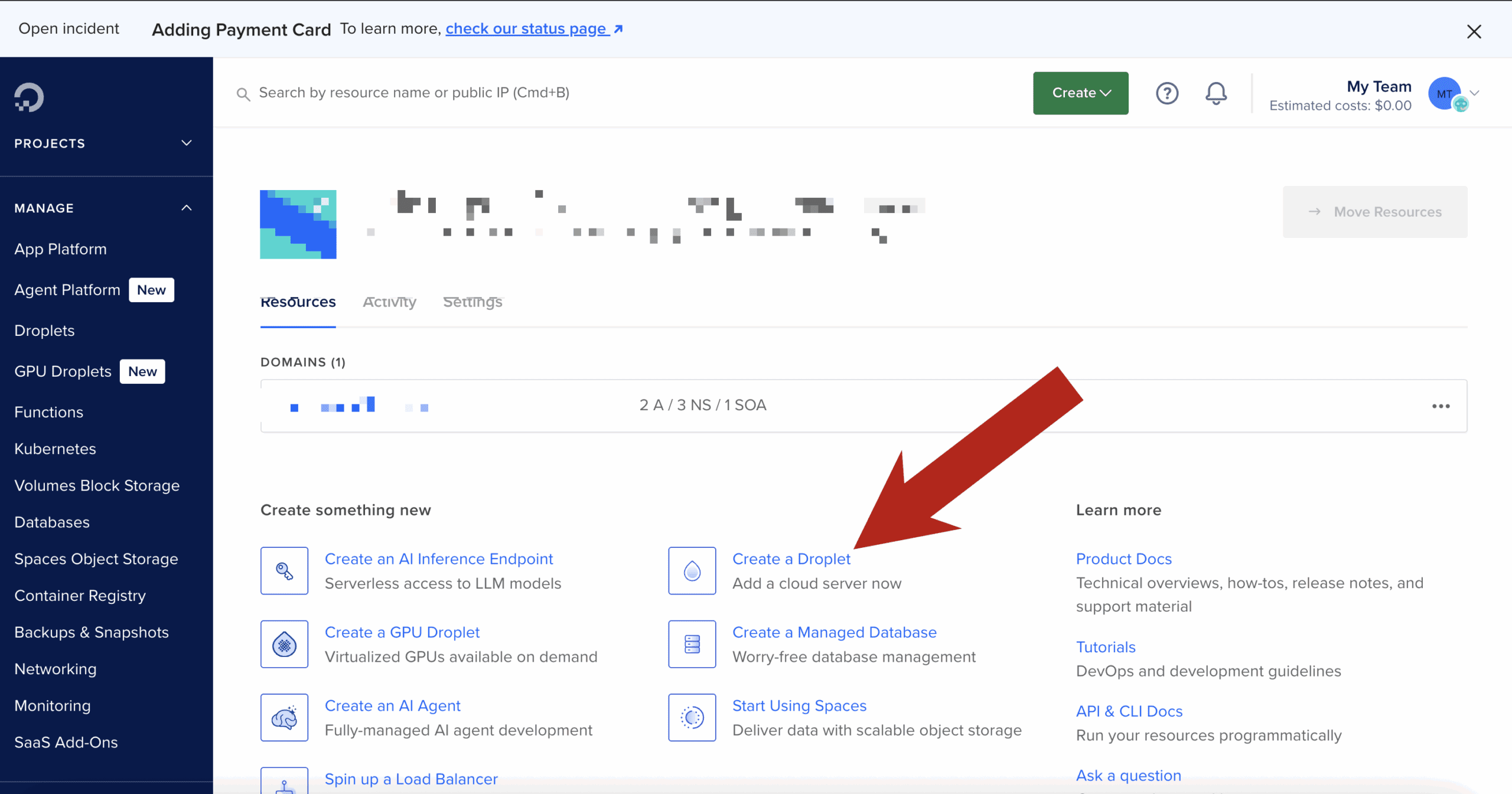
Step 1: Create the Droplet & install Docker
SSH into your Droplet, then install Docker:
Verify:
Step 2: Build the official NordVPN Docker image
This follows NordVPN’s documented approach, with no shortcuts.
Create a project directory
Create the Dockerfile
Paste:
Build the image:
Step 3: Run the NordVPN container (VPN only)
Why these flags matter
-
NET_ADMIN→ required to create VPN routes -
/dev/net/tun→ required for tunnel interfaces -
Hostname lock → prevents identity changes across restarts
Step 4: Authenticate using a NordVPN token
Inside the container:
Then connect to a country:
Confirm:
At this point, this container is fully VPN-connected.
Step 5: Turn the NordVPN container into a “VPN gateway”
Open a new terminal (outside the container).
Any container that uses:
will share the NordVPN container’s network stack — meaning all outbound traffic exits via the VPN.
Step 6: Run a geo-test container through the VPN
Example: test IP + country
Expected output:
If you see your Droplet’s region instead, the container is not attached to the VPN network.
Step 7: Run real code through the VPN
Node.js / Python / Playwright / curl / Postman
Any tool works the same way.
Example with a Node container:
Now:
-
API calls
-
OAuth redirects
-
Pricing endpoints
-
Content checks
…all behave as if they originate from the chosen country.
Switching regions (fast testing loop)
Inside the NordVPN container:
Then re-run your test containers.
This gives you a tight, repeatable geo-testing loop.
Common issues & fixes
/dev/net/tun missing
If missing:
Auth fails
-
Use token-based login
-
Do not use email/password inside Docker
IPv6 leaks or odd routing
If you suspect IPv6 issues, explicitly disable it at the container level:
(Some Nord docs mention this, but the value is commonly mis-documented.)