Best Mac for OpenClaw: Mac Mini and Mac Studio Buying Guide
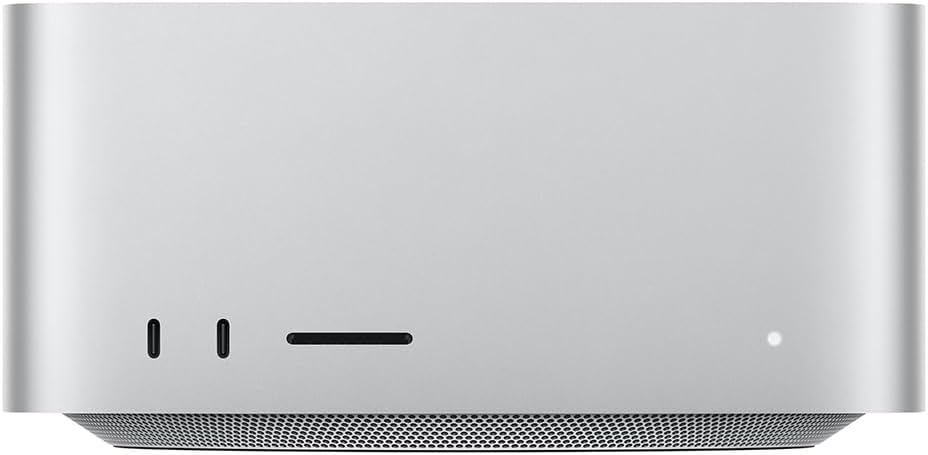
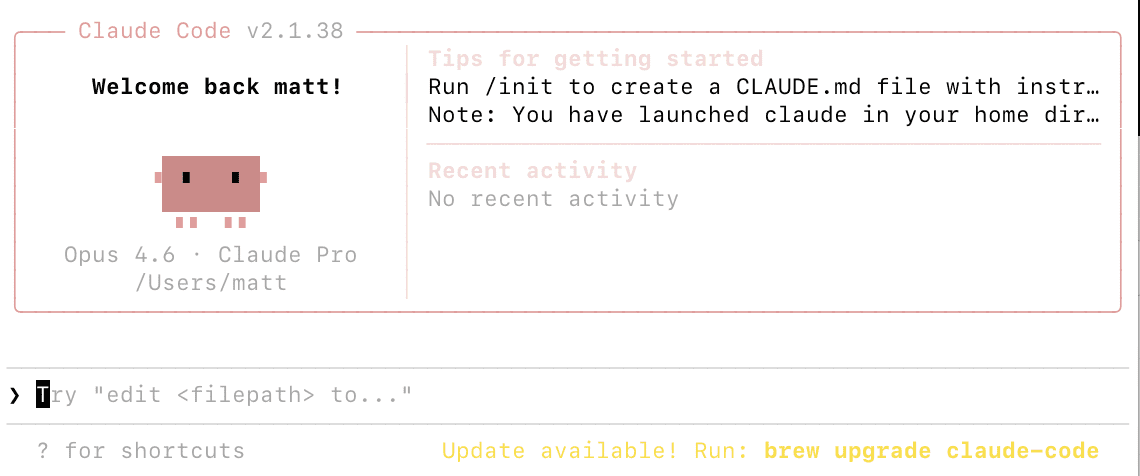
The Mac Mini and Mac Studio have become the go-to hardware for running OpenClaw (formerly Clawdbot). They’re compact, silent, energy efficient, and give you access to macOS-exclusive features like iMessage integration, Voice Wake, and the native menu bar app. But with configurations ranging from a $499 Mac Mini to a $4,000+ Mac Studio, choosing the right one depends entirely on how you plan to use it.
This buying guide breaks down every Mac Mini and Mac Studio configuration that makes sense for OpenClaw, explains which one fits your use case, and includes a comparison table so you can find the right model quickly. If you haven’t decided whether to run OpenClaw locally or in the cloud, our Mac installation guide and DigitalOcean deployment guide cover both options in detail.
How to Think About Mac Mini Specs for OpenClaw
Before looking at specific models, it helps to understand which specs actually matter for running an AI agent like OpenClaw.
RAM is the most important spec. OpenClaw itself is lightweight — it runs on Node.js and doesn’t need much memory for the core gateway and messaging integrations. However, if you also want to run local AI models through Ollama (so you don’t have to pay for cloud API calls), RAM becomes critical. The model must fit entirely in memory to run. You can’t upgrade RAM after purchase on any Apple Silicon Mac, so buy the most you can afford.
CPU matters less than you’d think. OpenClaw’s Node.js runtime is primarily single-threaded, and all M4-series chips have strong single-core performance. You won’t notice a meaningful difference between the base M4 and M4 Pro for the OpenClaw gateway itself. The M4 Pro’s extra cores help if you’re running multiple agents, local models, or doing other compute work on the same machine.
Storage is flexible. OpenClaw’s workspace, configuration files, and memory logs don’t take up much space. The 256GB base model is fine for a dedicated OpenClaw machine. If you’re also running local AI models, those model files can be large (7–70GB each), so 512GB or 1TB gives you more room. External storage via Thunderbolt is always an option for expansion.
Memory bandwidth affects local model speed. If you plan to run local LLMs via Ollama, memory bandwidth directly determines how fast the model generates tokens. The M4 delivers ~120 GB/s, the M4 Pro ~273 GB/s, and the M4 Max ~410–546 GB/s depending on configuration. The M3 Ultra in the Mac Studio reaches ~819 GB/s. For cloud-only API usage, this doesn’t matter much — but for local inference, faster bandwidth means noticeably snappier responses.
Mac Mini and Mac Studio Comparison Table for OpenClaw
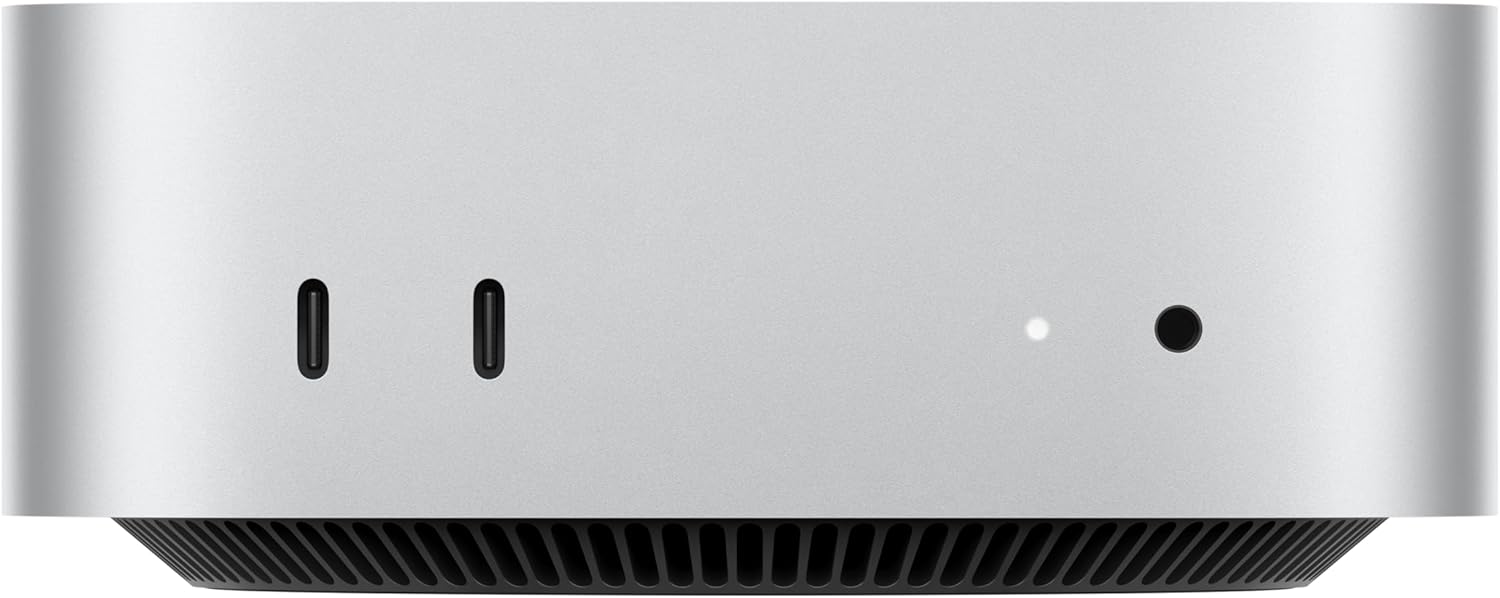
Below are the most relevant configurations for running OpenClaw, spanning both the Mac Mini and Mac Studio lineups. Prices listed are Apple MSRP — Amazon frequently discounts these by $50–$100. The “Amazon Link” column is where you can insert your affiliate links.
| Model | Chip | CPU / GPU | RAM | Storage | MSRP | Best For | Amazon Link |
|---|---|---|---|---|---|---|---|
| Mac Mini M4 — Base | M4 | 10-core / 10-core | 16GB | 256GB | $499 | OpenClaw only (cloud AI models) | View on Amazon |
| Mac Mini M4 — 512GB | M4 | 10-core / 10-core | 16GB | 512GB | $599 | OpenClaw + comfortable storage | View on Amazon |
| Mac Mini M4 — 24GB | M4 | 10-core / 10-core | 24GB | 512GB | $799 | OpenClaw + small local models (7B) | View on Amazon |
| Mac Mini M4 Pro — Base | M4 Pro | 12-core / 16-core | 24GB | 512GB | $1,399 | Power users, faster local models | View on Amazon |
| Mac Mini M4 Pro — 48GB | M4 Pro | 12-core / 16-core | 48GB | 512GB | $1,799 | Running 70B local models comfortably | View on Amazon |
| Mac Mini M4 Pro — 48GB / 1TB | M4 Pro | 12-core / 16-core | 48GB | 1TB | $1,999 | Best all-around for serious local AI | View on Amazon |
| Mac Mini M4 Pro — 64GB | M4 Pro | 14-core / 20-core | 64GB | 1TB | $2,399 | Multiple large models, heavy multitasking | View on Amazon |
| Mac Studio (2025) | |||||||
| Mac Studio M4 Max — Base | M4 Max | 14-core / 32-core | 36GB | 512GB | $1,999 | Fast local models, pro multitasking | View on Amazon |
| Mac Studio M4 Max — 64GB | M4 Max | 14-core / 32-core | 64GB | 1TB | $2,599 | Large models with fastest token speed | View on Amazon |
| Mac Studio M4 Max — 16-core / 128GB | M4 Max | 16-core / 40-core | 128GB | 1TB | $3,699 | Frontier models, multi-agent AI lab | View on Amazon |
| Mac Studio M3 Ultra — Base | M3 Ultra | 28-core / 60-core | 96GB | 1TB | $3,999 | 100B+ models, maximum throughput | View on Amazon |
| Mac Studio M3 Ultra — 256GB | M3 Ultra | 32-core / 80-core | 256GB | 2TB | $6,299 | Running the largest open-source models unquantized | View on Amazon |
Note: Some configurations (24GB M4, 48GB M4 Pro, 64GB M4 Pro, and most Mac Studio upgrades) are build-to-order and may only be available directly from Apple.com. Amazon carries the standard base configurations. Check both Amazon and Apple for availability. The Mac Studio M3 Ultra uses the previous-generation M3 chip — Apple has not released an M4 Ultra as of early 2026.
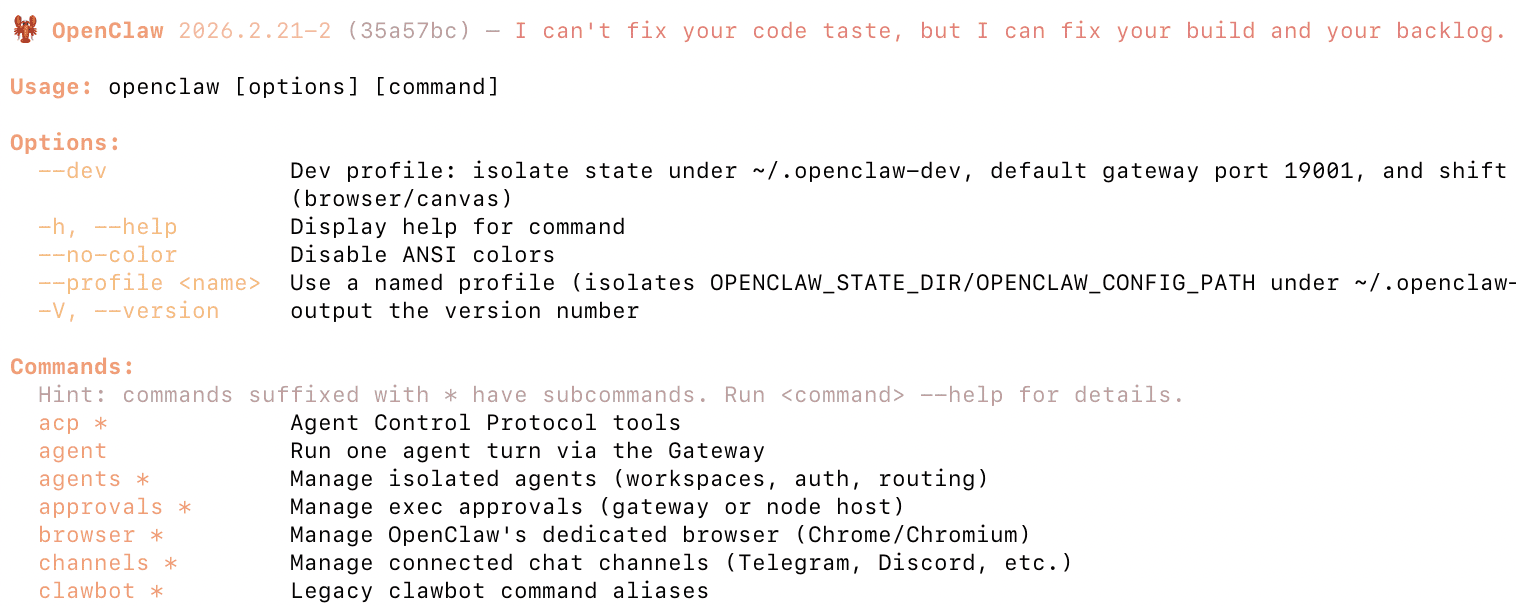
Our Recommendations by Use Case
Best Budget Pick: Mac Mini M4 — 16GB / 512GB ($599)
If you’re using OpenClaw exclusively with cloud AI models like Claude or GPT-4 (no local models), the base-tier M4 Mac Mini is genuinely all you need. OpenClaw’s Node.js gateway is lightweight, and 16GB of RAM handles the agent plus your messaging integrations without breaking a sweat. We recommend the 512GB storage version over the 256GB simply for comfort — the $100 difference gives you room for skills, logs, and general peace of mind. This is the model most people in the OpenClaw community start with.
This is also the configuration to consider if you already have a separate cloud AI subscription (like Anthropic’s API or a Claude Max plan) and just want a dedicated, always-on machine to run the OpenClaw gateway.
Best Value for Local AI: Mac Mini M4 — 24GB / 512GB ($799)
If you want to experiment with running local AI models through Ollama alongside OpenClaw, stepping up to 24GB of unified memory opens the door to smaller models in the 7B–13B parameter range (like Llama 3 8B or Mistral 7B). These models run entirely on-device with no API costs, giving you a fully private AI assistant.
The tradeoff is that the M4’s memory bandwidth (~120 GB/s) is slower than the M4 Pro, so token generation with local models won’t be as fast. For most personal assistant tasks, this is acceptable — you’re trading speed for savings on API costs. This is a build-to-order configuration, so order through Apple.com.
Best Overall: Mac Mini M4 Pro — 48GB / 1TB ($1,999)
This is the sweet spot that power users in the OpenClaw and local AI community have converged on. 48GB of unified memory lets you comfortably run 70B parameter models like Llama 3.1 70B (quantized), which approach the quality of cloud-hosted models. The M4 Pro’s ~273 GB/s memory bandwidth means you’re getting genuinely usable response speeds — not just loading models, but generating tokens fast enough for a natural conversation.
The 1TB storage gives you room to store multiple model files (which can be 40–70GB each), plus OpenClaw’s workspace and any other tools you want to run. The 12-core CPU handles multi-agent setups and background tasks without bogging down. If you can afford it and plan to take local AI seriously, this is the one to buy.
Best for Maximum Capability: Mac Mini M4 Pro — 64GB / 1TB ($2,399)
The 64GB configuration is for users who want to run the largest open-source models at higher quantization levels (Q6/Q8, where output quality is noticeably better), keep multiple models loaded simultaneously, or run multiple OpenClaw agents alongside other memory-intensive work. The upgraded 14-core CPU and 20-core GPU also help if you’re doing any development, rendering, or other compute work on the same machine.
For most people running OpenClaw as a personal assistant, this is overkill. But if you’re building a serious home AI lab or running agents for a team, the extra headroom is worth it.
Should You Buy Used?
Used Mac Minis — especially M1 and M2 models — can be significant bargains. An M2 Pro Mac Mini with 32GB of RAM can be found for around $800–$900 on platforms like Swappa or Back Market, compared to its original price of $1,599+. That’s enough RAM for meaningful local model use at roughly half the cost of a new M4 Pro.
A few things to keep in mind when buying used:
Any Apple Silicon Mac Mini (M1, M2, M4) will run OpenClaw just fine. The M4 is faster, but the M1 and M2 are still very capable for an always-on AI agent using cloud models.
Swappa and Back Market offer buyer protection and verified listings. Facebook Marketplace tends to be 10% cheaper but carries more risk — verify the serial number on Apple’s Check Coverage page before handing over cash.
Always check “About This Mac” on the device to confirm the RAM and storage match the listing. RAM cannot be upgraded after purchase on any Apple Silicon Mac.
When to Choose the Mac Studio Over the Mac Mini
The Mac Studio occupies interesting territory for OpenClaw users. At $1,999, the base M4 Max Mac Studio costs the same as a maxed-out Mac Mini M4 Pro with 48GB and 1TB — but gives you a fundamentally different machine. Here’s how to decide between them.
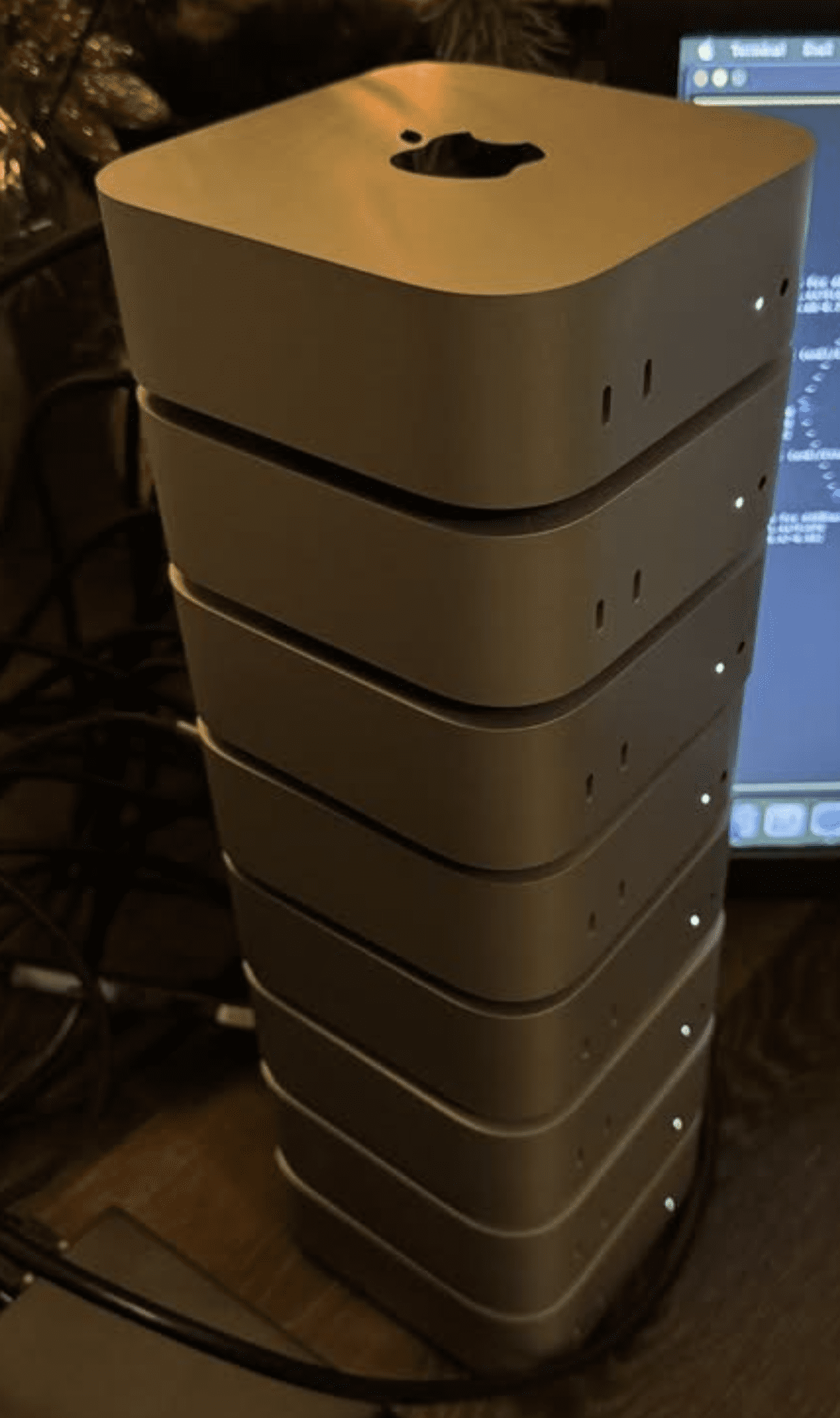
Mac Studio M4 Max — Base 36GB ($1,999): The Speed Pick
The base Mac Studio gives you the M4 Max chip with ~410 GB/s memory bandwidth — roughly 50% faster than the M4 Pro’s ~273 GB/s. For local AI models, this means significantly faster token generation. If you’re running a 13B–30B parameter model and want the snappiest possible responses, the Mac Studio delivers that at the same price as the top Mac Mini.
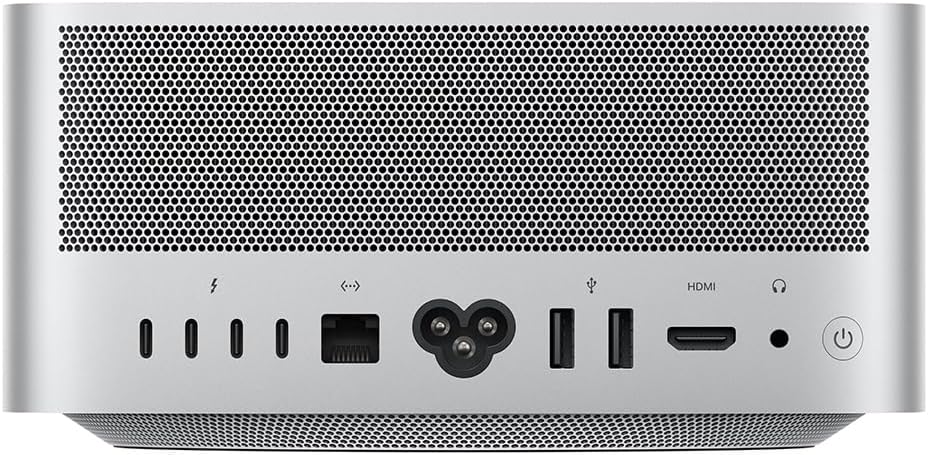
The tradeoff: you get 36GB of RAM instead of 48GB. That means slightly smaller models fit comfortably, or you’ll need more aggressive quantization for 70B models. If raw inference speed matters more than fitting the absolute largest models, the base Mac Studio is the pick. It also comes with 10 Gigabit Ethernet (vs. Gigabit on the Mac Mini), an SD card slot, USB-A ports, and four Thunderbolt 5 ports — nice extras for a machine that doubles as a workstation.
Mac Studio M4 Max — 64GB ($2,599): The Sweet Spot for Serious Local AI
Step up to 64GB and you get the best of both worlds — enough RAM for 70B quantized models with room to spare, paired with the M4 Max’s fast memory bandwidth for quick token generation. At $2,599, it’s $200 more than the Mac Mini M4 Pro with 64GB ($2,399), but you’re getting substantially faster inference, more ports, and 10Gb Ethernet. For users who are serious about running large local models as their primary AI backend, this is arguably the best value in the entire lineup.
Mac Studio M4 Max — 128GB ($3,699): The AI Lab
128GB of unified memory opens the door to running frontier-scale open-source models — 100B+ parameter models at reasonable quantization levels, multiple large models loaded simultaneously, or a combination of OpenClaw agents plus development workloads. The upgraded 16-core CPU and 40-core GPU with ~546 GB/s bandwidth make this a genuine AI workstation. This is for users who want to replace cloud API costs entirely with local inference and have the budget to match.
Mac Studio M3 Ultra — 96GB+ ($3,999+): Maximum Everything
The M3 Ultra models are for users who need the absolute maximum memory and throughput. The base M3 Ultra starts at 96GB with ~819 GB/s memory bandwidth — the fastest in the Mac lineup. It’s configurable up to 256GB (and technically up to 512GB through Apple), which means you can run virtually any open-source model at full precision.
One important note: the M3 Ultra uses the previous-generation M3 chip, not the M4. Apple hasn’t released an M4 Ultra as of early 2026 — it may arrive later in the year. For single-threaded performance (which OpenClaw’s Node.js runtime relies on), the M4 Max actually edges out the M3 Ultra. The Ultra wins on multi-core throughput, GPU performance, and raw memory capacity. If you need 96GB+ of RAM right now, the M3 Ultra is your only option in the Mac Studio form factor.
Mac Mini vs. Mac Studio: Quick Decision Framework
Choose the Mac Mini if: You’re using cloud AI models primarily, you want the lowest entry price, or you need up to 64GB of RAM. The Mac Mini M4 Pro with 48GB ($1,999) remains the most popular choice in the OpenClaw community for good reason — it handles the vast majority of use cases at a reasonable price.
Choose the Mac Studio if: Local model inference speed is a priority, you need more than 64GB of RAM, you want 10Gb Ethernet and extra ports, or the machine will double as a workstation for professional creative work. The Mac Studio’s M4 Max delivers meaningfully faster local inference than the M4 Pro at similar price points.
Accessories You’ll Need
Neither the Mac Mini nor the Mac Studio includes a display, keyboard, or mouse. For a dedicated OpenClaw server that you’ll manage remotely, you technically don’t need any of these after initial setup — just plug it into your router via Ethernet, set it up with a borrowed monitor and keyboard, then manage it via SSH and Tailscale going forward.
If you do want a permanent display, any monitor with HDMI or USB-C input works. For initial setup, you can use a TV as a temporary display.
An Ethernet connection is recommended over Wi-Fi for an always-on server. The Mac Mini includes Gigabit Ethernet, while the Mac Studio comes with 10 Gigabit Ethernet — both are built in, so just plug in a cable.
Getting Started After Purchase
Once your Mac Mini or Mac Studio arrives, head over to our complete macOS installation guide for step-by-step setup instructions — including expanded Mac Mini-specific configuration tips for running OpenClaw as a dedicated always-on server. The installation process is identical on both machines.
For ideas on what to automate once it’s running, check out 10 practical things you can do with OpenClaw. And before you give your AI agent broad system access, make sure you’ve read our OpenClaw security guide.
Related Guides on Code Boost
What Is OpenClaw (Formerly Clawdbot)? The Self-Hosted AI Assistant Explained
How to Install OpenClaw on Mac (macOS Setup Guide)
How to Install OpenClaw on Windows (Step-by-Step WSL2 Guide)
How to Install OpenClaw on DigitalOcean (Cloud VPS Guide)